Requests & Offers
The Requests page shows incoming cake requests from buyers that match your organisation's capabilities, location and delivery settings.
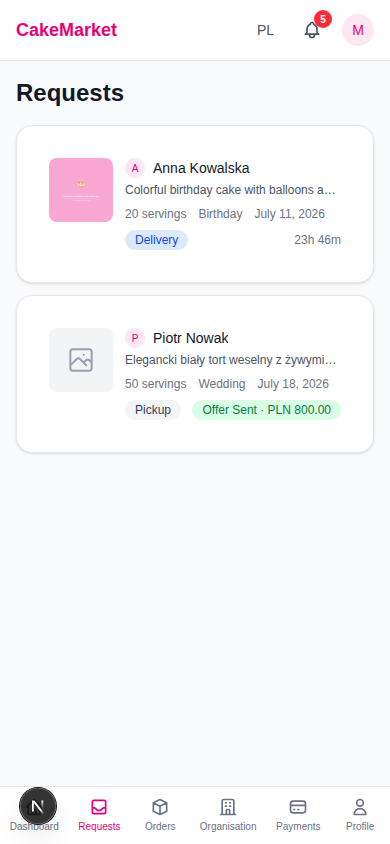
Request List
Requests are sorted with priority:
- Requests without offers first (you haven't responded yet)
- Then by creation date (newest first)
Request Card Information
Each card shows:
- Cake design image thumbnail
- Buyer name and avatar (with "Guest" badge if applicable)
- "Reorder" badge if this is a repeat order
- Theme description (truncated)
- Number of servings, event type, and desired date
- Delivery method badge (Delivery / Pickup)
- Status indicator:
- No offer yet → Time remaining countdown (turns red when < 2 hours)
- Offer pending → Green badge with your offered price
- Offer withdrawn → Warning badge
- Expired → "Request expired" label
Click any card to open the detail modal.
Request Detail Modal
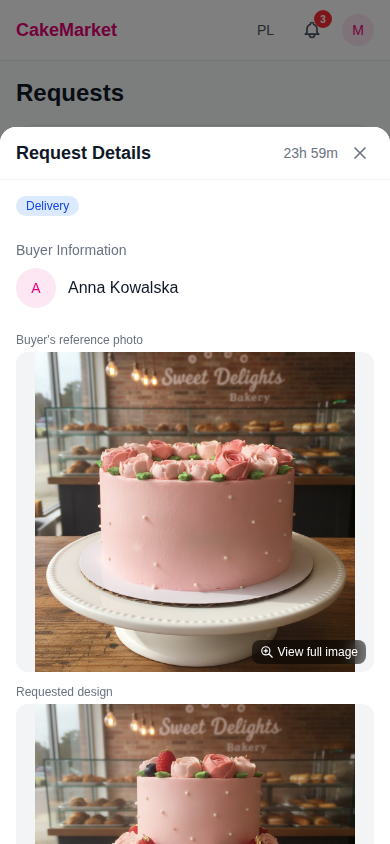
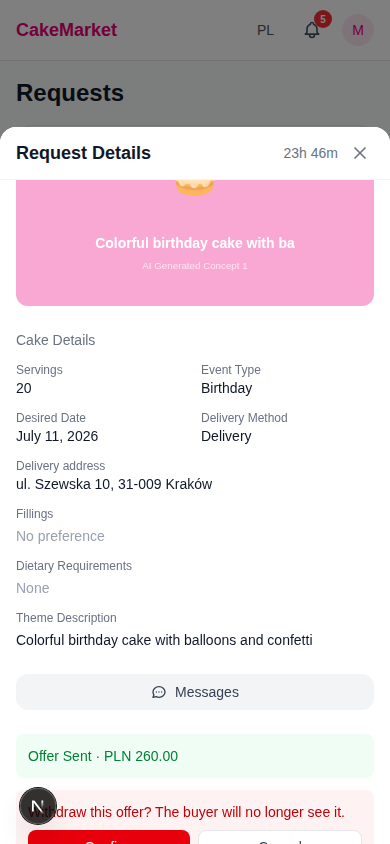
The modal shows the full request:
- Header — time remaining, plus badges: Reorder, Expired, Guest, delivery method
- Buyer info — name and delivery address (for delivery requests)
- Images — the buyer's reference photo (if they uploaded one) and the requested design are shown in full, uncropped. Tap View full image to open either at full size in a lightbox — useful for judging exactly what the buyer wants.
- Cake details — servings, event type, desired date, delivery method, fillings, dietary requirements, and theme description
- Reorder information — for repeat orders, a reference to the original order
- Messages — a message thread with the buyer (unread count shown)
Submitting an Offer
If you haven't submitted an offer and the request hasn't expired, the Send Offer form appears at the bottom of the modal:
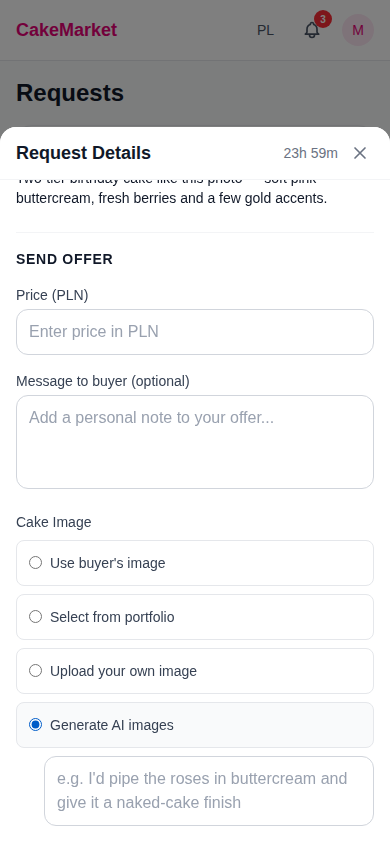
Price
- Enter your price in PLN
- Your organisation's deposit percentage is applied automatically
Message (Optional)
Add a personal message to the buyer explaining your offer.
Allergen Information
Fill in a short allergen note for this cake, listing its allergens and any relevant cross-contact risk. Allergens depend on the cake, so the note is entered per offer rather than saved once at the Organisation level. Confirm that the note applies to this cake and use it to ask the buyer to tell you about any food allergy or intolerance.
CakeMarket does not infer allergens from the buyer's dietary preferences. The note is supplied and confirmed by your bakery.
Cake Image
Choose the image the buyer will see on your offer (and, if accepted, on the order). You have four options:
| Option | Description |
|---|---|
| Use buyer's image | Accept the design the buyer chose in the wizard as-is |
| Select from portfolio | Pick one of your portfolio photos (grid view) |
| Upload your own image | Upload a photo of a cake you'd make. It's automatically screened for inappropriate content before it's attached |
| Generate AI images | Generate fresh concepts, then pick one |
:::tip AI generation uses the buyer's photo + your notes When you choose Generate AI images, an optional notes field appears (e.g. "I'd pipe the roses in buttercream and give it a naked-cake finish"). If the buyer uploaded a reference photo, generation blends their photo and brief with your notes — so the concept reflects both what the buyer asked for and how you'd actually make it. :::
:::info The final order image comes from you Whichever option you pick becomes the cake image on the order if the buyer accepts — you either accept the buyer's image or substitute your own (portfolio, upload, or AI). :::
Submitting
Click "Send Offer" to submit. The buyer sees your offer instantly in their waiting room, including your price, deposit percentage, allergen note, message, image, rating, any optional admin-issued badge — and the distance between your bakery and their location.
After Submitting an Offer
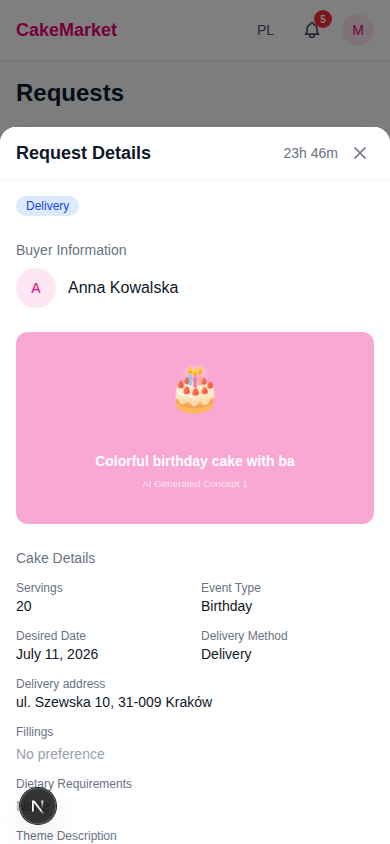
Once submitted:
- The request card shows a green Offer Sent badge with your price
- In the detail modal, you see your offer status and a Withdraw Offer action
- A message button lets you continue the conversation with the buyer
Offers created before this disclosure flow may show Food information update required. Buyers cannot see or purchase those offers. Withdraw the old offer and resubmit it after completing the disclosure.
Withdrawing an Offer
Pending offers can be withdrawn — an inline confirmation guards the action:
Offer Statuses
| Status | Meaning |
|---|---|
| Pending | Awaiting buyer's decision. You can still withdraw |
| Accepted | Buyer chose your offer — an order is created |
| Withdrawn | You withdrew your offer |
| Expired | The request expired before the buyer decided |