Organisation Setup
The Organisation page lets you manage every aspect of your bakery's presence on CakeMarket. It's organised into six tabs, each deep-linkable (/seller/organisation?tab=<name>).
Activation Status
At the top of the page:
- Organisation status — The organisation activates automatically after required seller details and Stripe onboarding are complete
- Platform disabled status — Appears only if CakeMarket administration has disabled marketplace access
Tab 1: Details
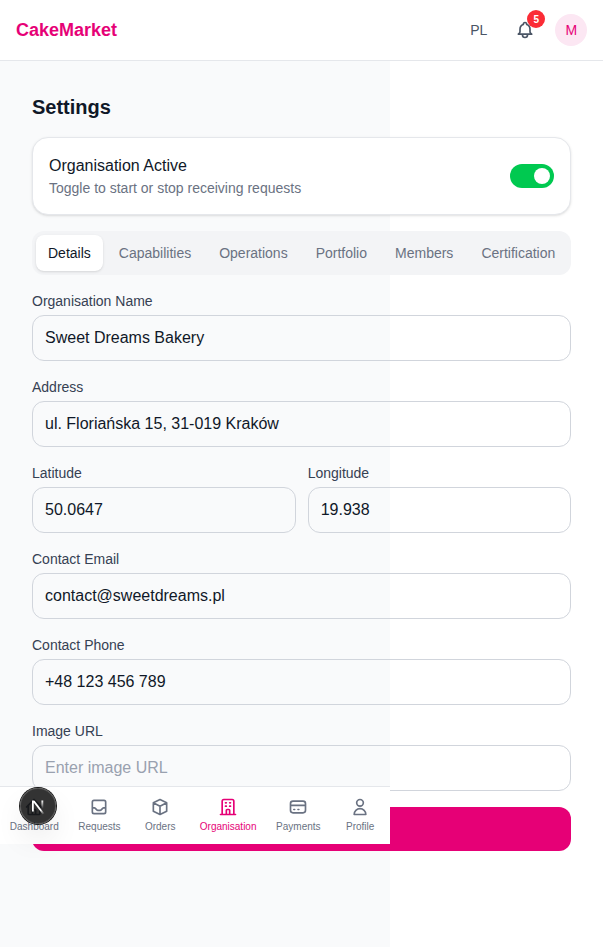
Basic information about your organisation.
| Field | Description |
|---|---|
| Name | Organisation display name |
| Address | Physical address (autocomplete captures coordinates) |
| Contact Email | Business email |
| Contact Phone | Business phone |
| Profile Image | Your logo or profile photo (preview shown) |
Click Save to update.
Recommended setup tabs remain Draft until an organisation admin saves the section and clicks Save and mark as completed. This checklist status is advisory and does not block activation.
Tab 2: Capabilities
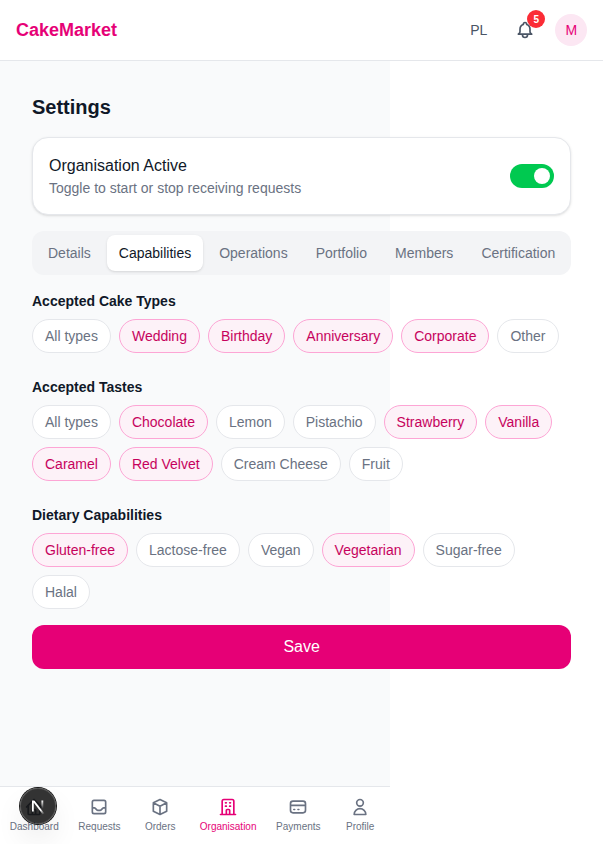
Configure what types of cakes and flavours you can make — this drives which requests are matched to you.
Accepted Cake Types
Toggle chips for event types you serve (birthday, wedding, anniversary, corporate…). Select "All Types" to accept everything.
Accepted Flavours (Fillings)
Toggle chips for fillings you offer (chocolate, vanilla, fruit, etc.). Select "All" for everything.
Special Requirements (Dietary)
Toggle chips for dietary requirements you can accommodate (gluten-free, vegan, sugar-free, etc.).
Allergen information is not set at the Organisation level — it depends on the cake, so you fill in a short allergen note on each individual offer instead (see the offer guide).
Behaviour note: Selecting "All" clears individual selections. Deselecting the last individual item re-selects "All".
Tab 3: Operations
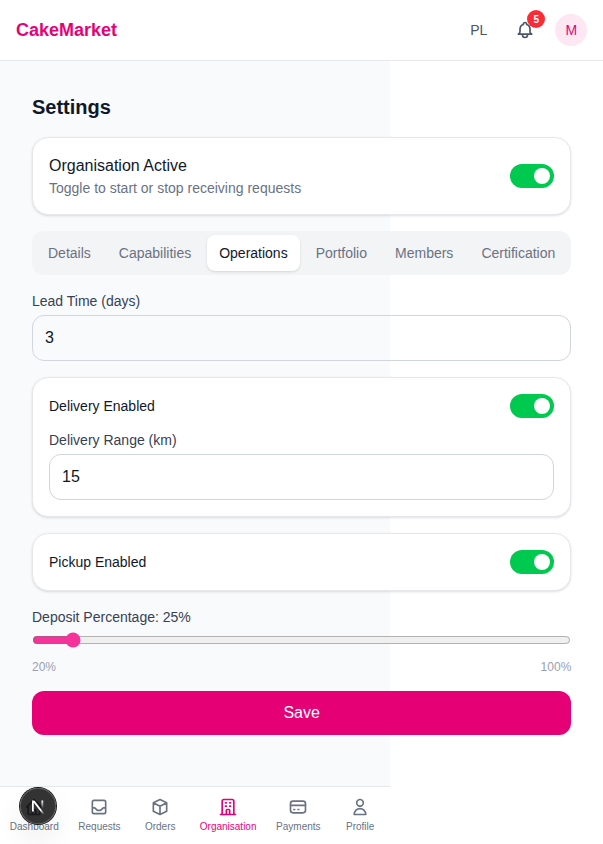
Configure delivery, pickup, and timing.
Lead Time
Minimum number of days notice required for orders (minimum: 1 day).
Delivery Settings
- Toggle: Enable or disable delivery
- Delivery Range: How far you'll deliver (in kilometres) — requests outside this range aren't matched to you
Pickup Settings
- Toggle: Enable or disable customer pickup. Pickup requests are matched using the buyer's travel radius and your location
At least one delivery method (delivery or pickup) must be enabled.
Deposit Percentage
Slider from 20% to 100% (step: 5%). This is the percentage of the total price the buyer pays upfront as a deposit.
Tab 4: Portfolio
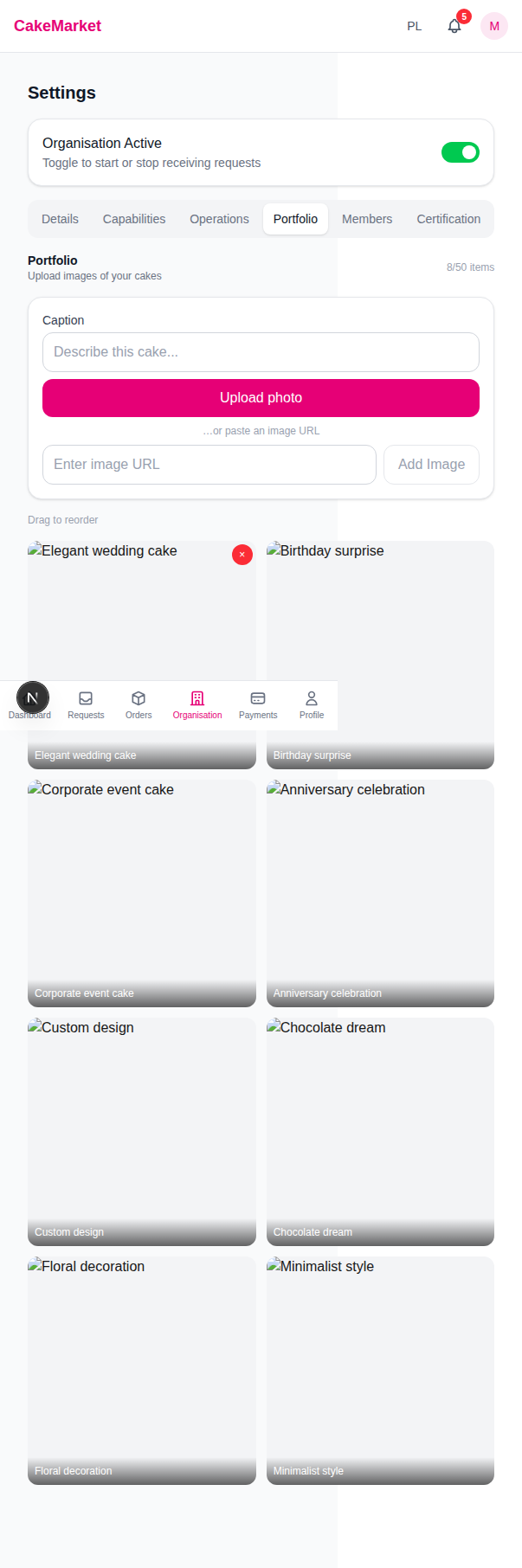
Showcase your best work to attract buyers — portfolio photos appear on your offer details, and you can attach them to offers.
Adding Images
- Upload a photo directly (large photos are automatically downscaled before upload), or paste an image URL
- Optionally add a caption
- Click "Add Image"
Managing Portfolio
- Reorder: Change the display order
- Delete: Remove an image
- Limit: Maximum number of items is enforced (count shown as "X/max")
Tab 5: Members
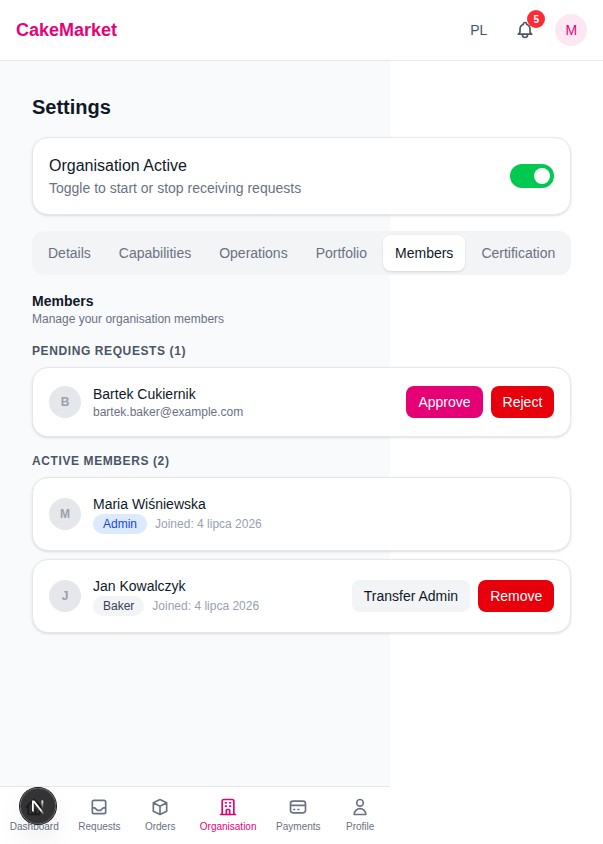
Manage who belongs to your organisation.
Pending Requests
If you're an admin, join requests appear at the top with:
- Approve — Accept the request; the baker becomes an active member
- Reject — Decline the request
Active Members
Each member shows their name, role badge (Admin or Baker), and join date.
If you're an admin, you can:
- Transfer Admin — Hand over admin rights to another member (requires confirmation)
- Remove — Remove a member from the organisation (requires confirmation)
Tab 6: Certification
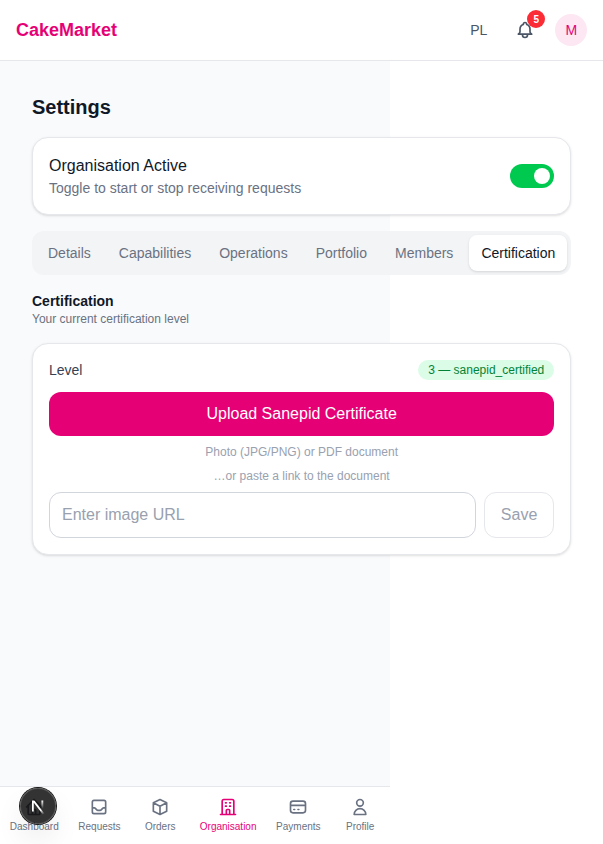
You may optionally submit a food-authority document for a public profile badge. Uploading a document is not required to use CakeMarket.
Current Status
Shows whether a public badge has been issued and the review status of your private submission.
Uploading a Certificate
- Upload the document as a photo or PDF through the private certificate upload control
- Set the expiry date
- The submission remains pending until a CakeMarket administrator reviews it and decides whether to issue a badge
The document, its URL and its expiry date are visible only to active administrators of your Organisation and authorised CakeMarket administrators. Customers see only an admin-issued badge. The badge means only that CakeMarket reviewed the submitted document for display; it is not an authority verification, inspection, endorsement or guarantee of compliance, food safety or product quality.