Managing Orders
The Orders page shows all your orders with their current status, payment details, and actions.
The Orders page requires a registered account. Guest users can track individual orders via the tracking link.
Order List
Orders are displayed as expandable cards. Each card shows:
- Cake image thumbnail
- Theme description
- Seller/organisation name
- Status badge (colour-coded)
- Desired date
- Total price
Click a card to expand and see payment details and actions:
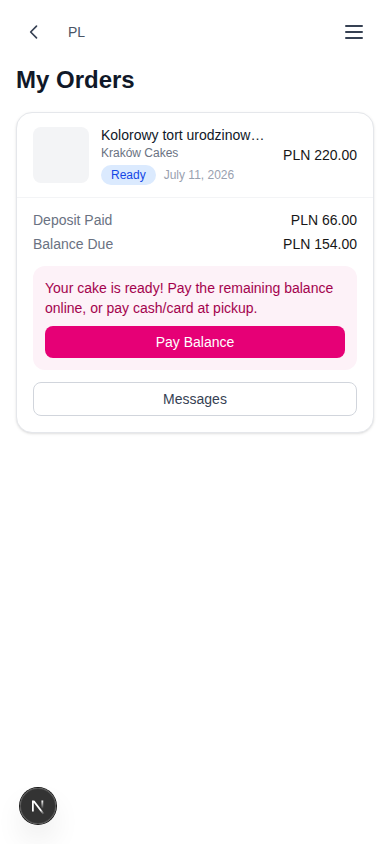
The expanded Order also keeps the exact allergen note that the bakery supplied and you acknowledged before paying the deposit.
Order Status Flow
Your order progresses through these stages:
Deposit Paid → In Progress → Ready → Delivered → Completed
| Status | What It Means | Your Action |
|---|---|---|
| Deposit Paid | Order confirmed; work starts automatically 3 days before the cake date | Wait |
| In Progress | The work period has started (you are notified by email and in-app); cancelling now refunds 50% of the deposit | Wait |
| Ready | Cake is ready for delivery/pickup | Pay the balance |
| Delivered | Seller has handed over the cake | Confirm delivery; contact the seller directly if there is a problem |
| Completed | Order finalised, escrow released | Leave a review |
| Cancelled | Order cancelled | — |
Status Badge Colours
| Status | Colour |
|---|---|
| Deposit Paid | Blue |
| In Progress | Yellow |
| Ready | Blue |
| Delivered | Blue |
| Completed | Green |
| Cancelled | Red |
Paying the Balance
When the seller marks your cake Ready, a balance-due panel appears on the expanded order card with a Pay Balance button. Payment is by card (Stripe), just like the deposit.
Alternatively, for pickup orders you can pay the balance in person — cash or card at the bakery — and the seller records it on their side.
Delivery Confirmation
When the seller marks your order as delivered, you'll see an alert with a Confirm Delivery action:
| Button | Action |
|---|---|
| Confirm Delivery | Confirms you received the cake. Completes the order and releases escrow to the seller |
If delivery, fulfilment or the product is not as agreed, contact the seller directly through the Order messages and exercise your rights against the seller. CakeMarket provides the communication and payment tools but does not adjudicate the complaint.
If you do nothing, escrow is released to the seller automatically 3 days after delivery.
After Completion
Completed orders offer two extra actions:
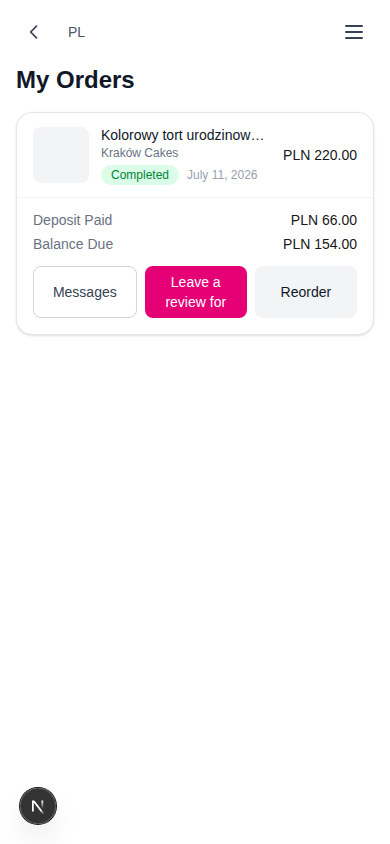
Leaving a Review
Click "Leave a Review" to rate the bakery (1–5 stars) with an optional comment — see Profile & Reviews.
Reordering
Click "Reorder" to open the cake wizard pre-filled with your previous order's details, targeted at the same bakery. Pick a new date and adjust anything else before submitting.
Messaging
Click "Messages" on any order to open a chat thread with the seller. See the messaging section for details.
Guest Order Tracking
Guest buyers receive a tracking link after placing an order (format: /track/{token}). No login is required — anyone with the link can view the order status.
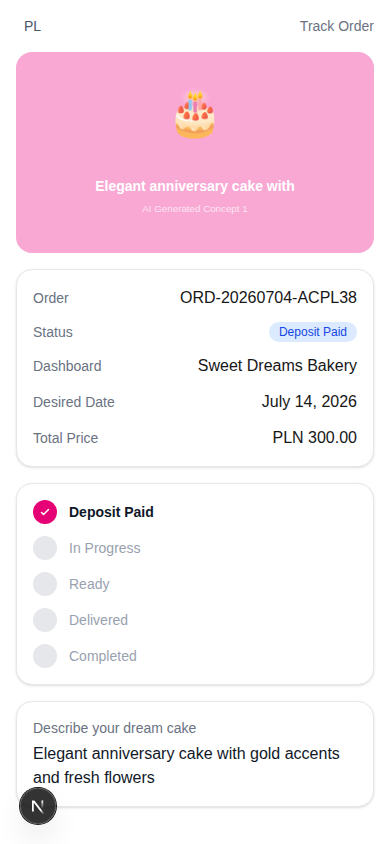
Treat the tracking link as a secret: anyone who has it can access the guest Order. The tracking page shows:
- Cake image (full-width)
- Order number and status badge
- Bakery name, desired date and total price
- Visual progress indicator — Deposit Paid → In Progress → Ready → Delivered → Completed
- Your cake description
- Actions allowed by the current status, including paying an online balance, cancelling under the cancellation policy and confirming delivery
Escrow & Payment Timeline
- Deposit is collected when you accept an offer (held in escrow by the platform)
- Balance is due when the cake is ready — paid online or in person (cash or card)
- If you confirm delivery, escrow releases to the seller immediately
- Otherwise, escrow release happens automatically 3 days after delivery
- If there is a product, delivery or fulfilment problem, contact the seller directly; CakeMarket does not decide the complaint