Managing Orders
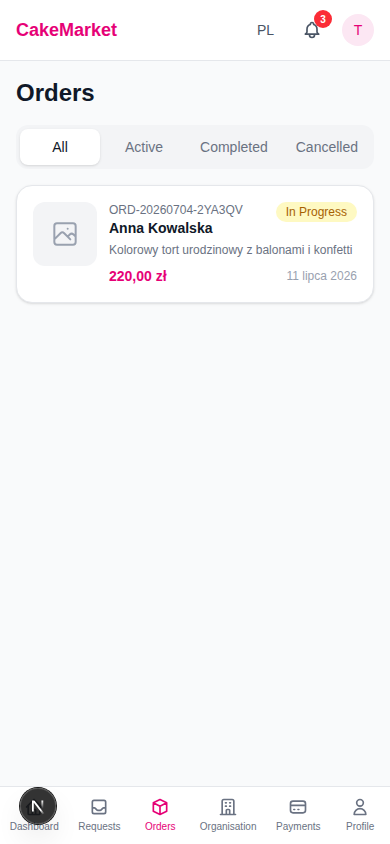
The Orders page shows all your orders across different stages.
Filtering Orders
Use the filter tabs at the top:
| Filter | Shows | Sorted By |
|---|---|---|
| All | Every order | Desired date (soonest first) |
| Active | In-progress orders | Desired date (soonest first) |
| Completed | Successfully delivered orders | Creation date (newest first) |
| Cancelled | Cancelled orders | Creation date (newest first) |
Order Card
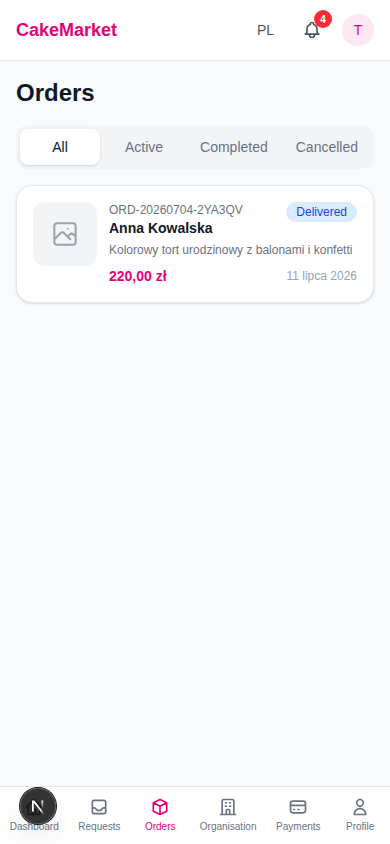
Each order card displays:
- Cake image thumbnail
- Buyer name and order number
- Status badge (colour-coded)
- Theme description
- Total price and desired date
Click a card to open the full order detail.
Order Detail
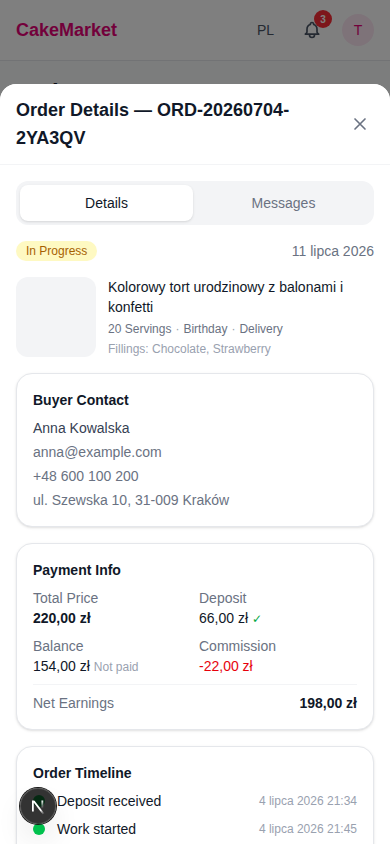
The detail view has two tabs: Details and Messages.
Details Tab
Cake Information
- Full cake image and theme description
- Servings, event type, delivery method
- Fillings and dietary requirements
Buyer Contact
- Name, email, phone (if provided)
- Delivery address (delivery orders) or the buyer's location (pickup orders)
Payment Information
| Field | Description |
|---|---|
| Total price | Full order price |
| Deposit | Amount paid upfront (with checkmark once received) |
| Balance | Remaining amount and how it was paid (Stripe / cash / card) |
| Commission | Platform fee (shown in red) |
| Net earnings | Your actual earnings (bold) |
Order Timeline
A visual timeline of the order's progression — Deposit received → Work started → Marked ready → Delivered → Completed — with green dots and timestamps for completed stages, and a red indicator for a cancelled order.
Messages Tab
Opens the messaging thread with the buyer (see Messaging).
Order Status Actions
The action available depends on the current status:
Deposit Paid
The buyer has paid the deposit. There is nothing for you to click at this stage — work starts automatically 3 days before the cake's date: the order moves to in_progress on its own, and both you and the buyer are notified (in-app and by email, including the refund implications). The order detail shows the scheduled start date.
In Progress
You're working on the cake. Click "Mark as Ready" → moves to ready. The buyer is prompted to pay the balance.
Ready
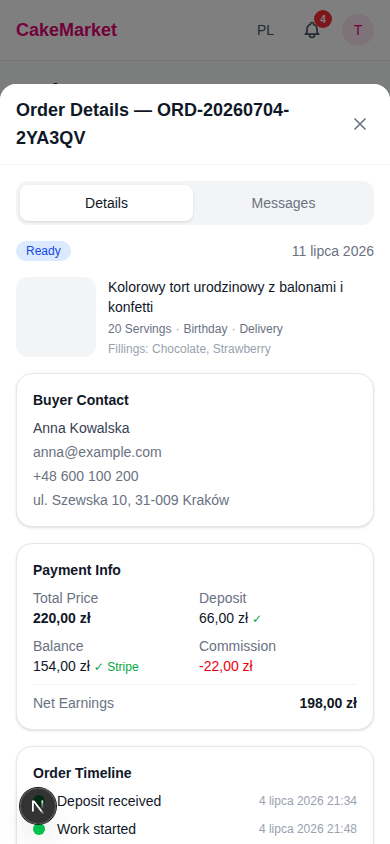
What happens next depends on the balance:
If the balance is already paid (the buyer paid online):
- Click "Mark as Delivered" → moves to
delivered
If the balance is NOT yet paid (pickup with payment in person):
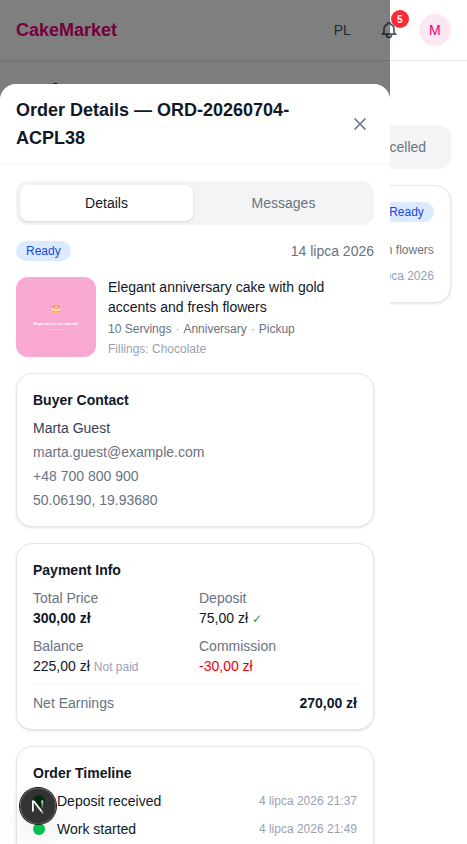
- Click "Mark Paid in Cash" — records an offline cash payment
- Click "Mark Paid by Card" — records a card payment at pickup
- Then mark the order delivered
Delivered
The cake has been handed over. The buyer may confirm delivery (escrow releases immediately), otherwise escrow auto-releases after 3 days. Product, quality, delivery and fulfilment complaints are handled directly between you and the buyer; CakeMarket does not adjudicate them.
Completed / Cancelled
Order is finalised — no further actions.
Cancelling an Order
When the application shows "Cancel Order" before completion, you can cancel from the detail view.
- Requires confirmation before proceeding
- Every captured online payment for the Order is refunded to the buyer, including the Deposit and any online Balance
Cancelling orders may affect your seller rating and standing on the platform.
Status Badge Colours
| Status | Colour |
|---|---|
| Deposit Paid | Blue |
| In Progress | Yellow |
| Ready | Blue |
| Delivered | Blue |
| Completed | Green |
| Cancelled | Red |
The legacy disputed database value may appear in historical data only; it is not an active Order workflow.