Waiting Room & Offers
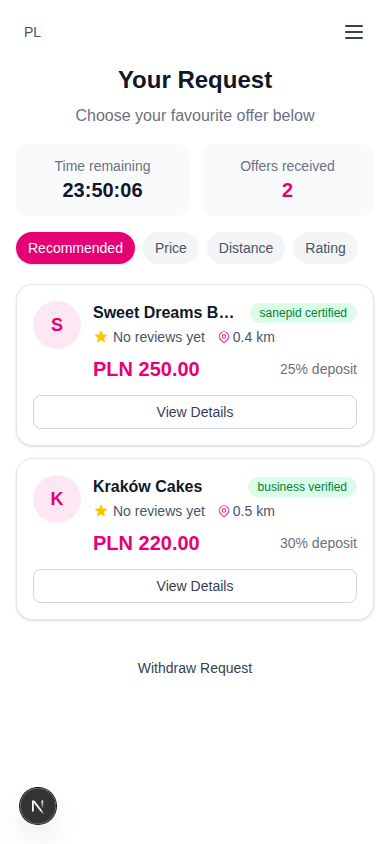
After submitting your cake request, you enter the waiting room where sellers send their offers in real time.
The Waiting Room
Real-Time Updates
The waiting room uses Server-Sent Events (SSE) for instant updates — you'll see new offers appear as soon as sellers submit them. If SSE isn't available, the page falls back to polling every 5 seconds.
Stats Display
Two key metrics are shown at the top:
| Metric | Description |
|---|---|
| Time Remaining | Countdown timer (HH:MM:SS) until your request expires |
| Offers Received | Number of offers submitted by sellers |
:::info Request Expiry Requests expire after 24 hours. After expiry, no new offers can be submitted. You'll see a yellow alert with an option to create a new request. :::
Offer Cards
Each offer card shows:
- Bakery avatar and name
- Optional document-review badge, if CakeMarket has issued one
- Rating — Star rating and number of reviews
- Distance — How far the bakery is from your address
- Price — In PLN (large, highlighted)
- Deposit percentage — How much you'd pay upfront
- "View Details" button
Sorting Offers
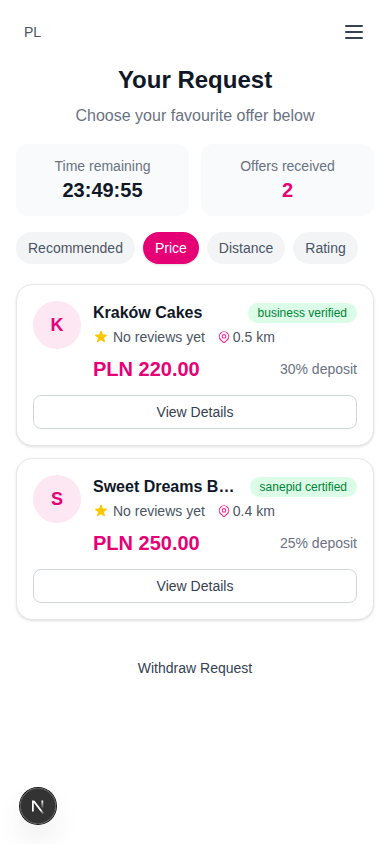
Once you have more than one offer, sorting chips appear:
| Sort | Behaviour |
|---|---|
| Recommended | Smart algorithm: rating (40%), price (35%), optional badge level (25%) |
| Price | Cheapest first |
| Distance | Nearest bakery first (shown when your request has a location) |
| Rating | Best-rated first |
An optional badge means only that CakeMarket reviewed a private document submitted by the bakery for display. Customers cannot access that document, its URL or its expiry date. The badge is not an authority verification, inspection, endorsement or guarantee of compliance, food safety or product quality.
Viewing Offer Details
Click "View Details" to open the full offer modal:
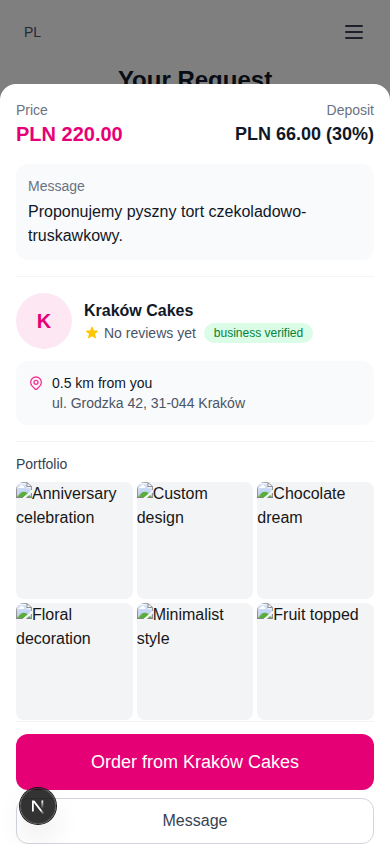
Price & Deposit
Total price and the deposit amount calculated from the seller's deposit percentage.
Seller Message
An optional message from the seller explaining their offer.
Allergen Information
The bakery's short allergen and cross-contact note is shown in the offer details and again in checkout before payment. Tell the bakery about any food allergy or intolerance before paying. An offer cannot be purchased until the bakery has confirmed its note.
Bakery Profile
- Name, rating, and optional admin-issued document-review badge
- Distance from you with the bakery's address
Reviews
The seller's latest reviews with star ratings and written comments.
Portfolio
A gallery grid of the seller's portfolio images, so you can see their previous work.
Actions
| Button | Action |
|---|---|
| "Order from [Bakery]" | Opens the order form to accept this offer |
| "Message" | Opens a chat thread with the seller (shows unread count badge) |
:::note Guest Messaging Guest users see a prompt to log in before they can send messages. Signing in from the waiting room links your guest request to the account and reopens the conversation. :::
Messaging Sellers
The message thread lets you communicate with sellers before placing an order:
- Your messages: Right-aligned, pink background
- Seller messages: Left-aligned, grey background
- Send: Type your message and press Enter (Shift+Enter for new line)
- Auto-refresh: Messages poll every 10 seconds for new replies
Accepting an Offer
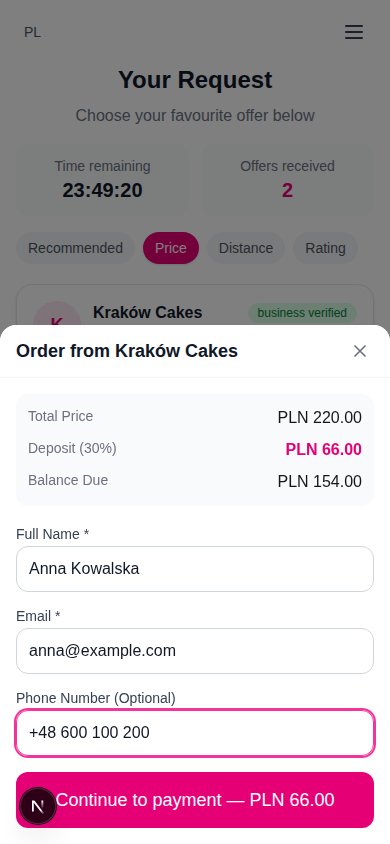
When you click "Order from [Bakery]", the order form opens:
Payment Summary
The form shows a breakdown:
- Total price — Full order cost
- Deposit — Amount due now (percentage shown)
- Balance due — Remaining amount, due when the cake is ready
Contact Information
| Field | Required | Description |
|---|---|---|
| Full Name | Yes | Your name |
| Yes | Contact email | |
| Phone | No | Contact phone number |
Food-information confirmation
Before continuing to Stripe, read the exact bakery disclosure and tick the required confirmation. The disclosure version and your server-recorded acknowledgement are stored with the Order, so the acknowledged text remains available in registered Order history and guest tracking.
Paying the Deposit
Click "Continue to payment" to pay the deposit by card (Stripe). Your offer is held for 10 minutes while you complete payment, so nobody else can take the slot. On success:
- The order is created with status
deposit_paid - Other pending offers for your request are automatically closed
- You're redirected to the confirmation page
Withdrawing Your Request
If you change your mind before accepting an offer, click "Withdraw Request" at the bottom of the waiting room.
- A confirmation dialog appears
- Confirming cancels your request and expires all pending offers
- All matching sellers are notified
Confirmation Page
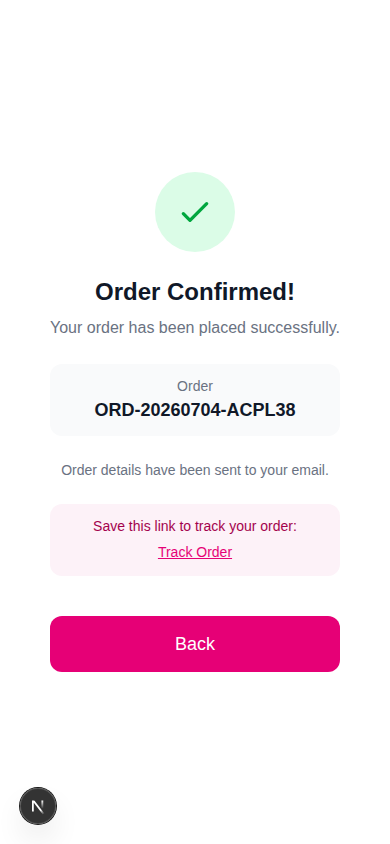
After placing an order, you see a success confirmation:
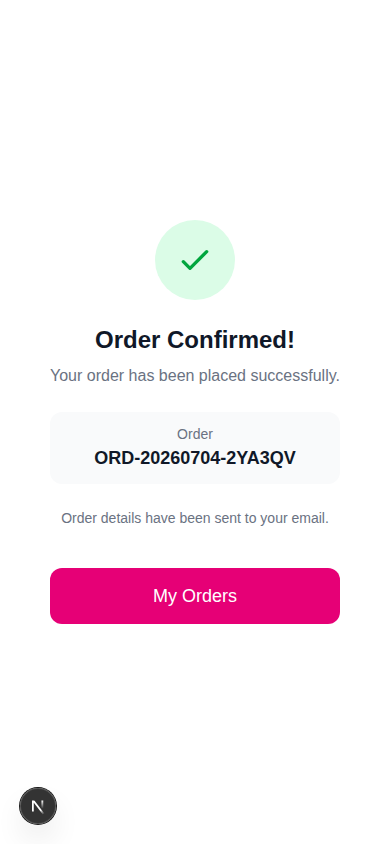
- Green checkmark with your order number
- Confirmation that an email has been sent
For registered users: A "My Orders" button takes you to your orders page.
For guest users: A tracking link is shown — save it to follow your order without logging in: